





How to Use Notion AI for Work, Study, and Daily Productivity
Notion has already become a favorite tool for notes, planning, and organization. With the introduction of Notion AI, it’s no longer just a workspace; it’s an intelligent assistant that helps you write faster, think more clearly, and stay organized.
But many users open Notion AI once, try a command or two, and then forget about it. The result? They miss out on features that can save hours every week.
In this guide, you’ll learn how to use Notion AI effectively, whether you’re a student, creator, professional, or business owner, without overcomplicating your workflow.
Quick Summary (For Skimmers)
- Notion AI works best inside your existing notes and pages
- It helps with writing, summarizing, planning, and organization
- Clear instructions produce better results
- Notion AI saves time but still needs human review
- Simple use cases deliver the biggest productivity gains
Why Notion AI Is Gaining Popularity So Fast
Notion’s growth has been massive. According to company and industry reports, Notion is used by tens of millions of people worldwide, including students, startups, and large enterprises.
At the same time, productivity research shows that knowledge workers spend up to 30–40% of their time searching for information or rewriting content. Tools like Notion AI aim to reduce that wasted effort by working directly inside your notes.
Unlike standalone AI tools, Notion AI:
- Lives inside your workspace
- Understands the context of your pages
- Works with your existing content
That integration is what makes it powerful.
What Notion AI Is Good At (and What It Isn’t)
✅ Notion AI Is Good At:
- Writing and rewriting text inside pages
- Summarizing long notes or documents
- Turning rough notes into structured content
- Generating task lists and action items
- Improving clarity and tone
❌ Notion AI Is Not Good At:
- Automatically knowing your priorities
- Replacing your thinking or decisions
- Managing complex workflows by itself
- Working without clear instructions
Think of Notion AI as a writing and thinking assistant, similar to how ChatGPT is used in step-by-step: using ChatGPT to write SEO articles for your website.
How to Use Notion AI: Step-by-Step
Let’s walk through practical ways to use Notion AI in real life.
Step 1: Activate Notion AI Inside a Page
To use Notion AI:
- Open any Notion page
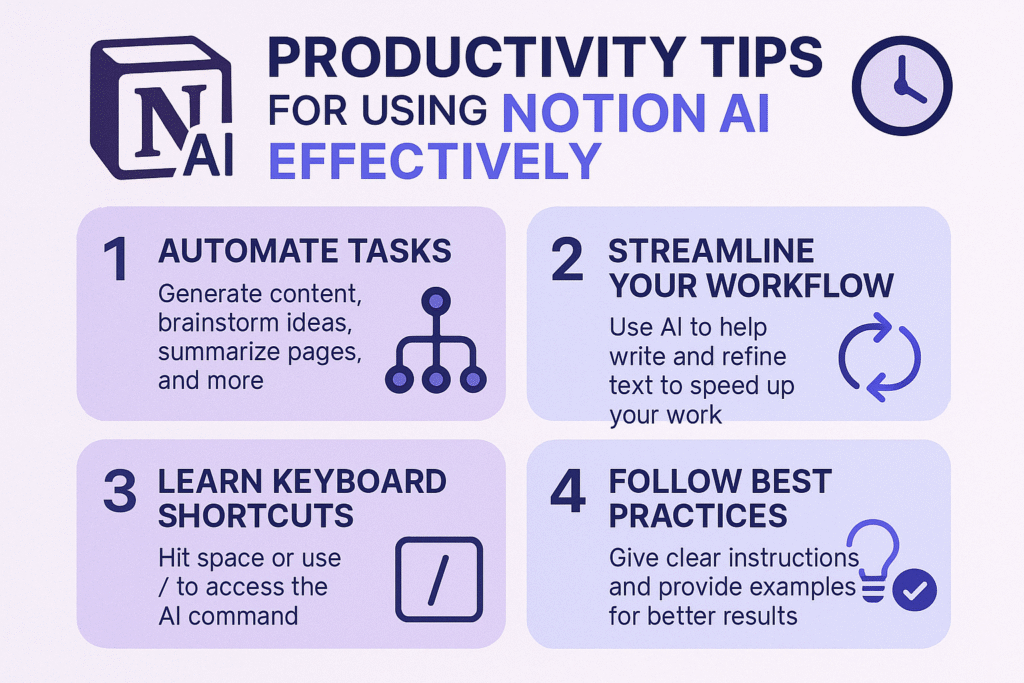
- Type /ai or highlight text and select Ask AI
- Choose what you want to do (write, summarize, rewrite, etc.)
Because it works inside your page, Notion AI understands:
- The surrounding content
- Your formatting
- The purpose of the document
This context makes outputs more relevant than generic prompts.
Step 2: Use Notion AI for Writing and Drafting
Notion AI is excellent for first drafts.
You can ask it to:
- Write blog sections
- Draft meeting notes
- Create documentation
- Generate outlines
Example prompt:
“Write an introduction for a guide about time management using a friendly, practical tone.”
This drafting approach matches best practices discussed in how to use AI to write blog posts that still sound human.
Always treat the result as a draft, not a final version.
Step 3: Summarize Long Notes and Documents
One of the most valuable uses of Notion AI is summarization.
It can:
- Condense long meeting notes
- Extract key takeaways
- Turn research into bullet points
Example:
“Summarize this page into 5 key points.”
Research from productivity studies shows that short summaries improve recall and decision-making, especially when dealing with large volumes of information.
This is especially helpful for students, managers, and researchers.
Step 4: Rewrite and Improve Existing Content
Notion AI shines when improving text clarity.
You can ask it to:
- Simplify complex language
- Rewrite text to sound more professional
- Make content more concise
- Adjust tone (friendly, formal, neutral)
Example:
“Rewrite this paragraph to be clearer and more concise without changing the meaning.”
This mirrors the workflow explained in how to use AI to rewrite and improve existing content.
Step 5: Use Notion AI for Planning and Task Management
Notion AI can help with planning by turning ideas into actions.
Examples:
- Convert notes into task lists
- Create project plans
- Break goals into steps
Prompt example:
“Turn these notes into a clear task list with priorities.”
This is a powerful way to reduce mental load, similar to strategies discussed in how to use AI for daily productivity and time management.
Common Use Cases for Notion AI
🧑💼 For Professionals
- Draft reports and proposals
- Summarize meetings
- Improve internal documentation
🎓 For Students
- Summarize lectures
- Rewrite notes for clarity
- Create study guides
✍️ For Creators
- Draft articles and scripts
- Organize ideas
- Repurpose content
📊 For Teams
- Standardize documentation
- Speed up onboarding materials
- Reduce repetitive writing
Common Mistakes When Using Notion AI
Avoid these if you want real productivity gains:
❌ Writing Vague Instructions
“Write something about productivity” leads to generic results.
❌ Publishing Without Editing
AI drafts need human refinement.
❌ Overusing AI for Every Sentence
Not every line needs rewriting.
❌ Treating AI as a Decision-Maker
AI helps organize, you decide.
These mistakes are similar to issues discussed in how to use AI for social media posts without sounding robotic.
Real Stats That Show Why This Matters
- Workers lose an average of 5–8 hours per week on repetitive writing and organizing tasks (Harvard Business Review).
- Teams using AI-assisted documentation report faster onboarding and fewer errors in internal processes.
- Summarized notes improve information retention, especially for complex topics.
These benefits compound over time when AI is used consistently but thoughtfully.
Notion AI vs Other AI Tools
Notion AI differs from standalone AI tools because:
- It works directly inside your notes
- It uses document context
- It supports long-term knowledge management
Standalone tools (like chat-based AI) are better for:
- Brainstorming from scratch
- External research
- One-off writing tasks
Many people use both together for the best results.
Best Practices for Using Notion AI Long-Term
To get lasting value:
- Create templates that work with AI
- Use consistent prompts
- Review and refine outputs
- Combine AI help with personal judgment
AI should reduce friction, not add complexity.
Key Takeaways
- Notion AI works best inside your existing workflow
- Use it for drafting, summarizing, rewriting, and planning
- Clear prompts lead to better results
- Always edit before finalizing content
- Consistent use delivers compounding productivity gains
FAQs
Is Notion AI free?
Notion AI is typically offered as a paid add-on, though pricing and availability may vary.
Can Notion AI replace other AI tools?
Not completely. It excels at in-context work but may not replace brainstorming or external research tools.
Is Notion AI good for beginners?
Yes. It’s especially beginner-friendly because it works directly inside pages.
Can I use Notion AI for work documents?
Yes, but always review for accuracy and tone before sharing externally.
Does Notion AI store my content?
Content handling depends on Notion’s policies. Avoid sensitive or confidential information.